

How to purchase gift cards
How to buy discounted gift cards
Buy digital gift cards in minutes and access them anytime from your online wallet.
Union Shopper gift cards are delivered digitally, usually within seconds.
Follow the steps below to see how it works — from browsing brands to accessing your gift card.
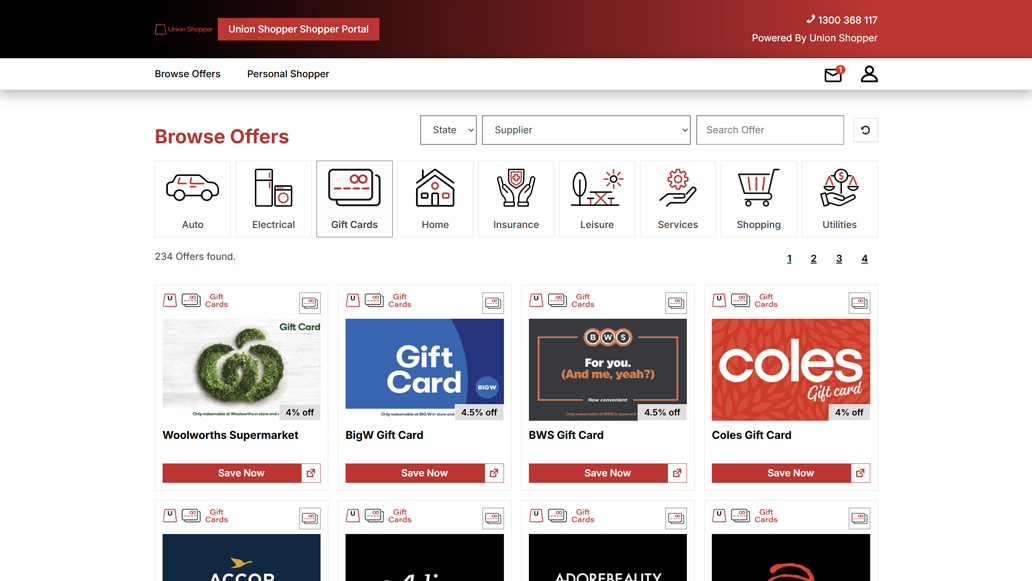
Step 1: Browse gift cards
Choose from a wide range of brands and see your member savings before you buy.
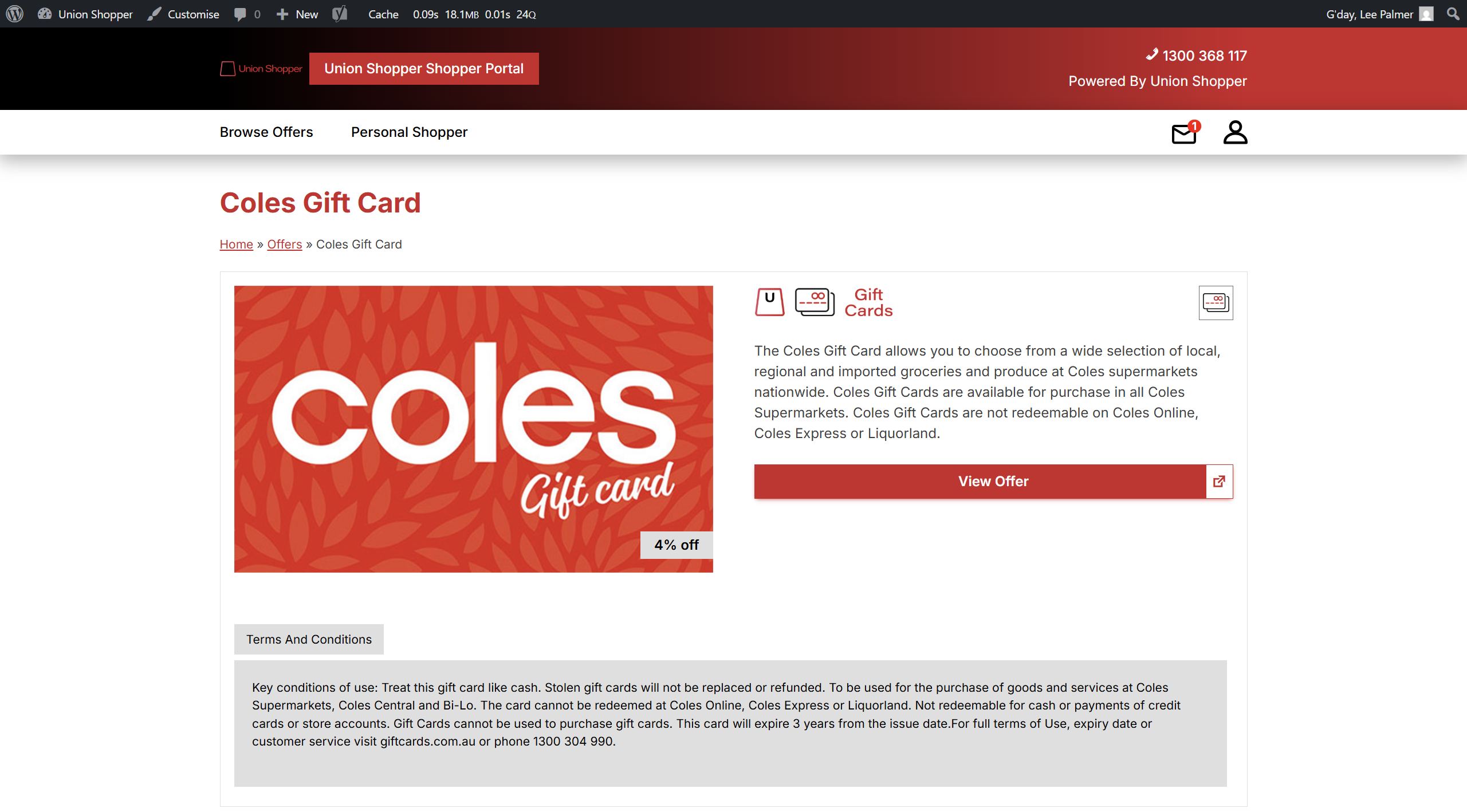
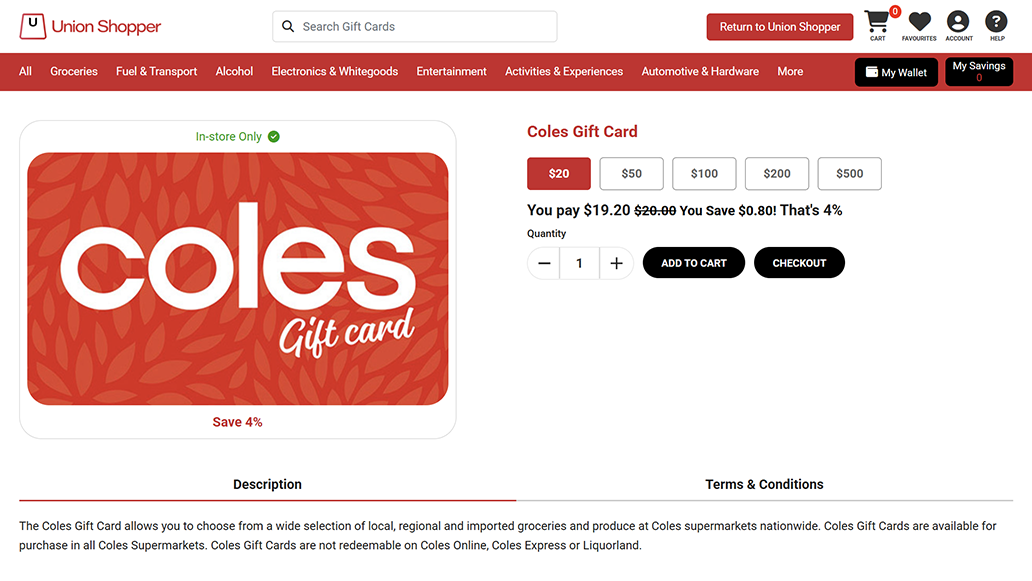
Step 2: Choose your gift card
Pick the gift card value you want and review the discount.
When you’re ready, click Add to cart.
Step 3: Checkout
At checkout, you can choose a secure bank payment option or pay by Credit/Debit Card.
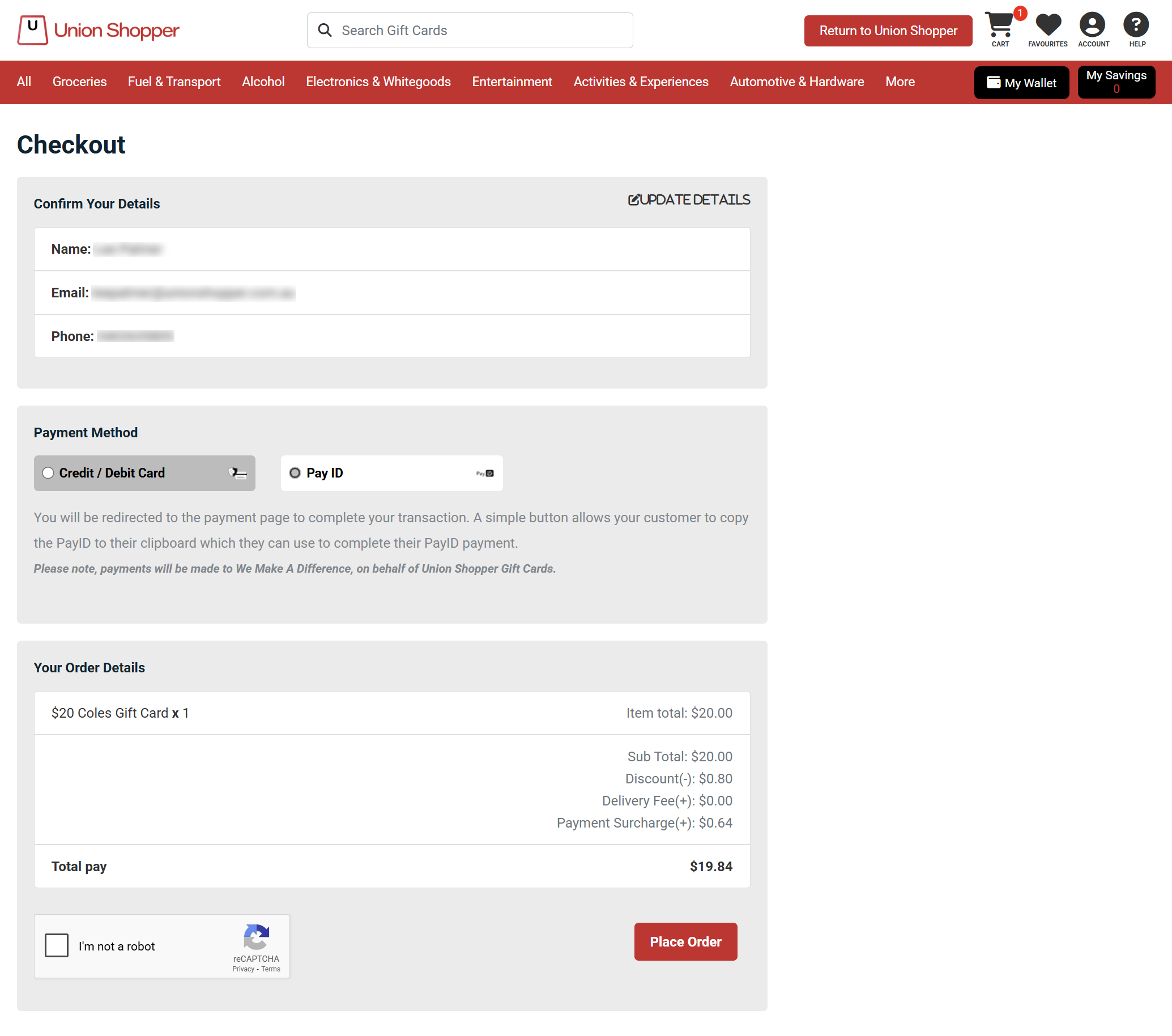
How to pay
1. Secure Bank Payment
Select PayID at checkout, check the “I am not a Robot” box and click Place Order; you’ll be taken to a secure payment screen. There are two options for secure bank payments.
- PayTo — authorise a one-time payment to be taken from your bank account
- PayID — send a one-off payment using your banking app or online banking
Note Bank payment transaction fee for PayID & PayTo: $0.64 per transaction
When you select PayID at checkout and click Place Order, you’ll be taken to a secure payment screen. From there:
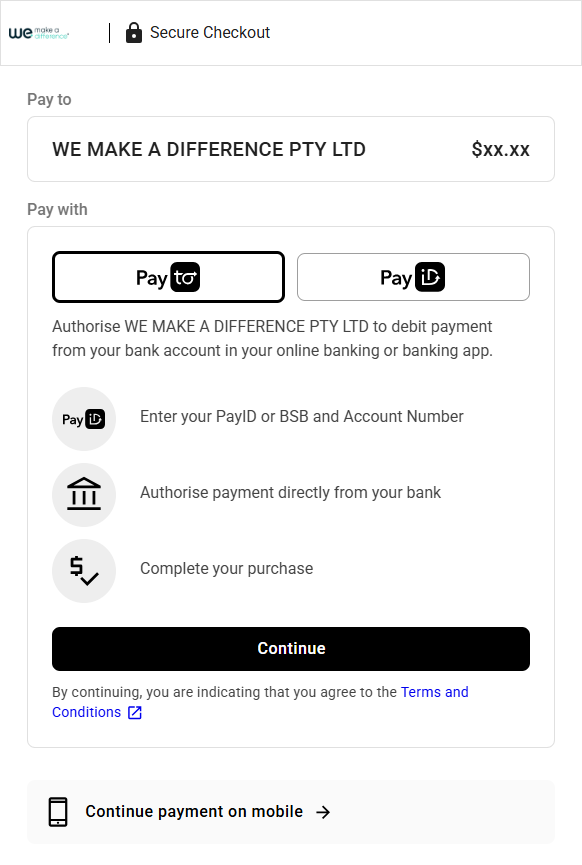
- Choose PayTo on the secure payment screen
- Click on
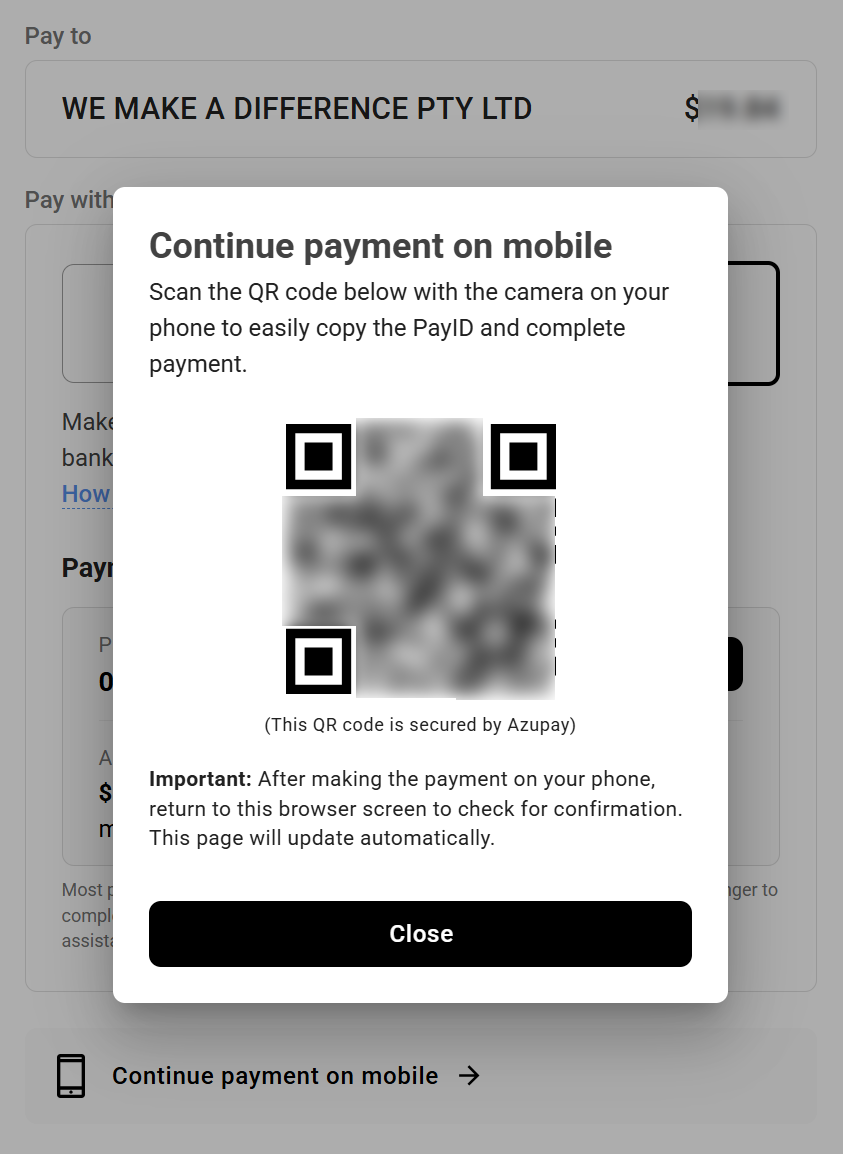
- “Continue to payment on mobile”, scan the QR code that appears and then proceed via your mobile device, or:
- Click on the “Continue” button.
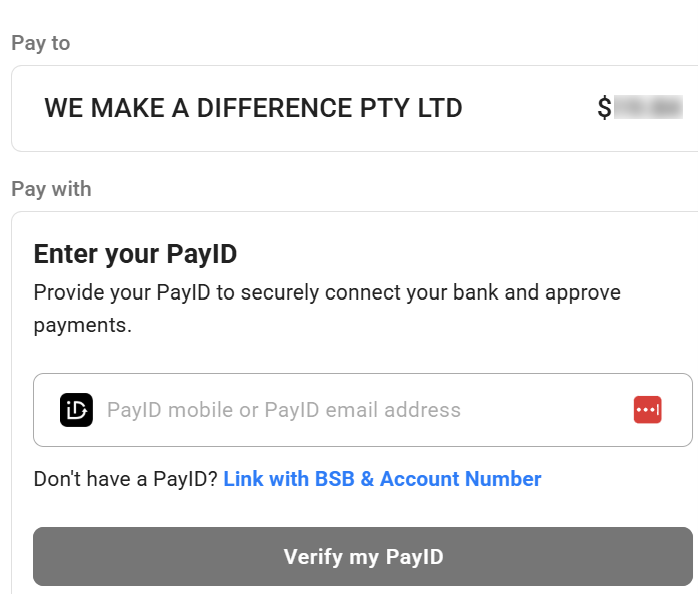
- In the PayID field that appears, enter your personal PayID (either your mobile number or your email address) and click “Verify my PayID”
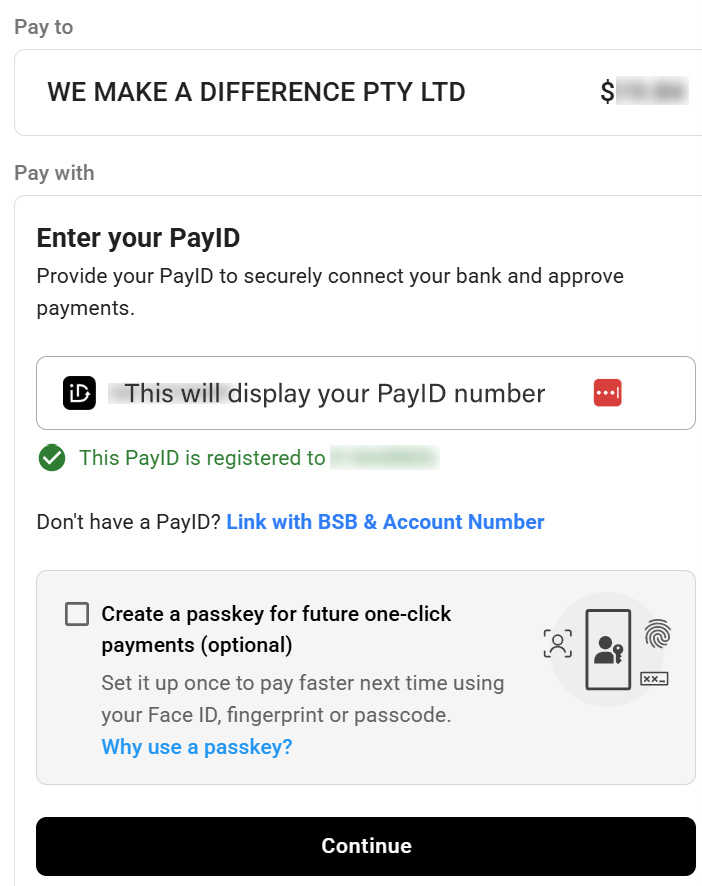
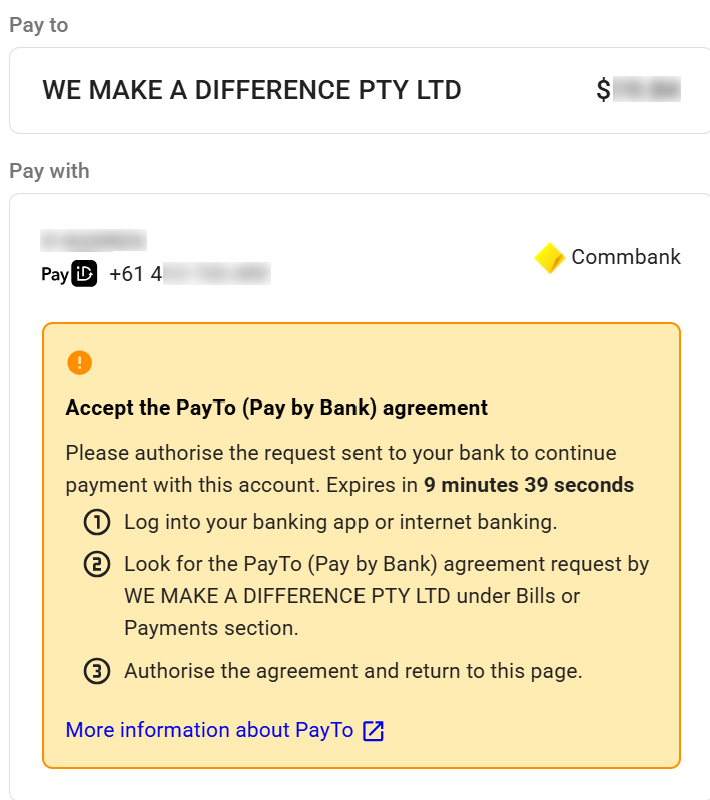
- Once verified, click “Continue” and an agreement will be generated and sent to your bank. You will receive a notification on your banking app.
- Log into your banking app or internet banking and look for the PayTo agreement.
- Authorise the agreement and return to the gift card website. A confirmation page should load indication the payment has been processed.
- Your gift card should be available within a few minutes.
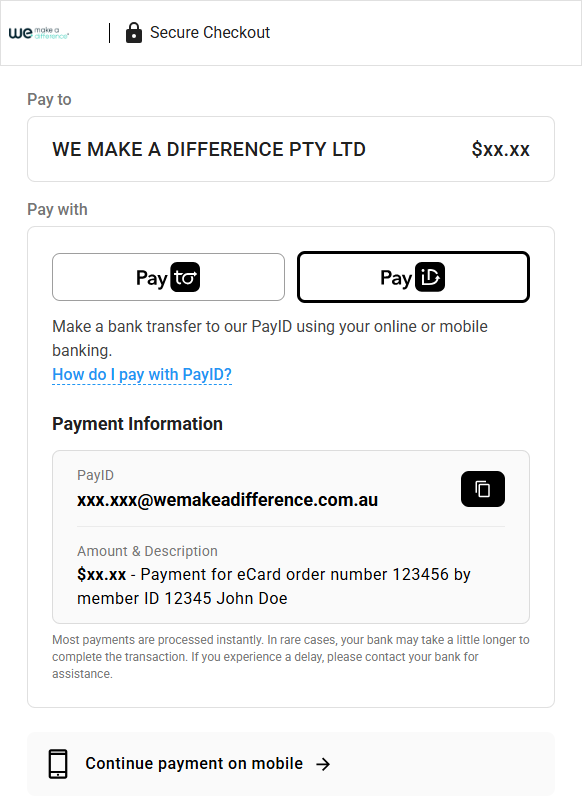
When you select PayID at checkout and click Place Order, you’ll be taken to a secure payment screen. From there:
- Choose PayID on the secure payment screen
- Click
- “Continue to payment on mobile”, scan the QR code with the camera on your phone and select the “copy” icon on the page that loads, or
- Click the “copy” icon on your desktop to copy the PayID details and then open your online banking.
- Select the account you want to make a payment from, paste the PayID details you have copied, enter the correct amount in the amount field and complete the payment.
Important: Make sure you enter the correct amount on the order. After making the payment on your phone, return to this browser screen to check for confirmation. This page will update automatically. - A confirmation page should load indication the payment has been processed.
- Your gift card should be available within a few minutes.
2. Paying by credit or debit card
Select Credit/Debit Card, enter your details, and complete payment securely.
Good to know
- Transaction fee: 1%
- Gift cards are typically delivered within seconds
Step 4: Get your gift card
After payment, your digital gift card is issued — usually within seconds.
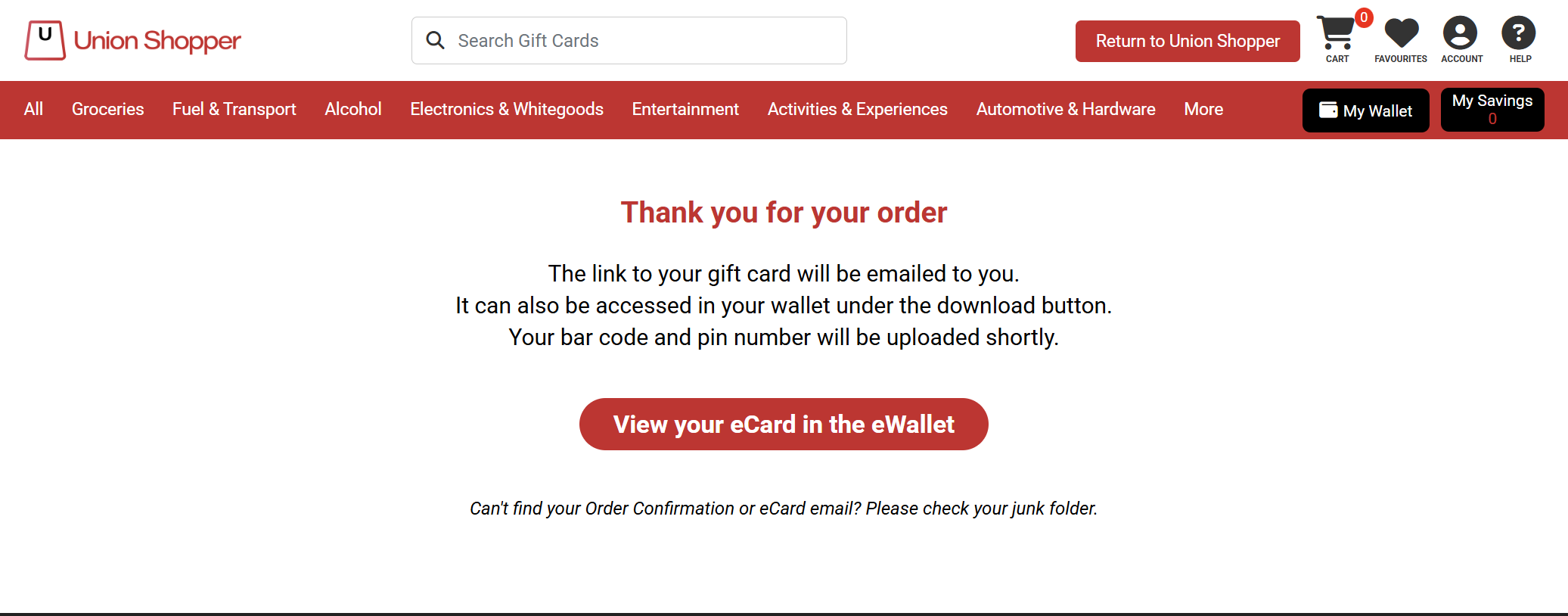
You will see a confirmation screen, and you should also receive two emails, an order confirmation containing the details of your order, and an email containing a link to your gift card.
Step 5: Access your online wallet
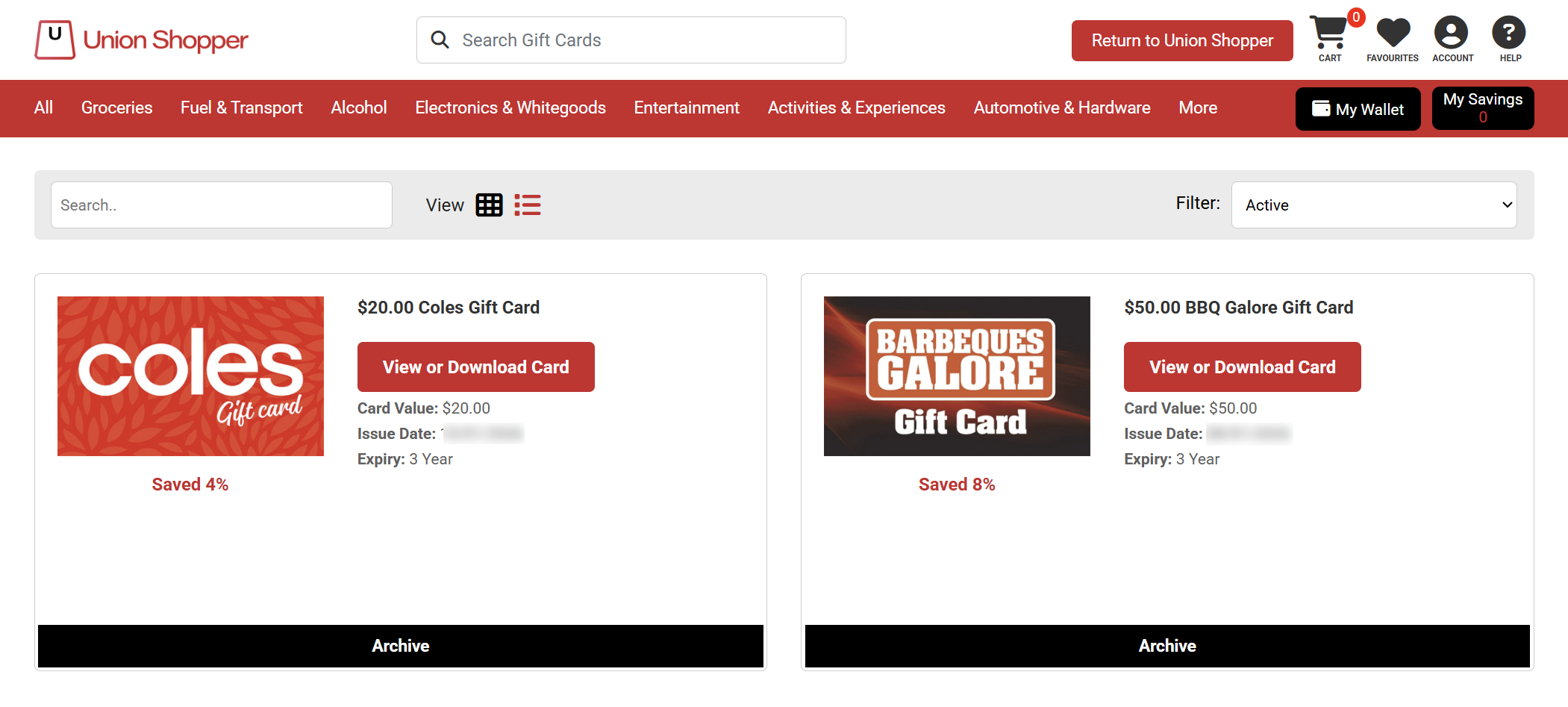
Your online wallet lets you:
- View current and past gift cards
- Re-download gift cards at any time
- Access cards even if an email is deleted
Simple, secure, and convenient
- Digital-only gift cards (no waiting for mail)
- Secure payment processing
- Access your gift cards anytime
- Member support available if you need help
Ready to get started?